Archive for the ‘Hardware’ Category.

Win two free windows phones!

Microsoft is giving away two free windows phones through my wife Michelle’s blog.

If you want to try to win a pair of windows phones, one for you and one for your spouse, then sign up here:
How We Met & a Windows Phone for You and Your Valentine

LANDesk Support Tools – Android Edition (Demo)

This is my first real project written for Android. Yes, I wrote it in C# using Mono for Android.

How to create an Android menu?

Ok, so adding a menu that pops up from the bottom when the menu button is clicked is very common and quite easy to do.

Note: This assumes you have the Android SDK, Emulator, and Eclipse all working already.

Step 1 – Create your Android project

  1. In Eclipse, select File | New Project | Android | Android Project.
  2. Give your project a Name.
    I named this project “HelloAll”.
  3. Select the Build Target (the minimum version of Android).
    I selected Android 2.2.
  4. Enter a Package name.
    Package name is like a namespace, it can be anything you want, but you should actually choose a name as carefully as you choose and the name of an object.  I named the package this: org.rhyous.
  5. Click Finish.

Your project is now created.

Step 2 – Add an XML file for the menu

  1. Expand the res directory in your project.
  2. Right-click on the layout folder and choose New | Other.
  3. Choose XML | XML file and click Next.
  4. Name the file.
    I named my file menu.xml.
  5. Click Finish.
  6. Add the following text into your menu:
    <menu xmlns:android="http://schemas.android.com/apk/res/android">
        id="@+id/menu_item_1" android:title="@string/menu_1"/>
        id="@+id/menu_item_2" android:title="@string/menu_2"/>
        <item android:id="@+id/menu_item_3" android:title="@string/menu_3"/>
    </menu>
    

Step 3 – Add the strings for the menu items

  1. Expand the res\values directory in your project.
  2. Open the strings.xml.
  3. Add strings for each menu item.
    Make sure you use the same id strings you used in the menu.xml for the title of each menu item.
    Your strings.xml should now look like this:

    <?xml version="1.0" encoding="utf-8"?>
    <resources>
        <string name="hello">Hello World, HelloAllActivity!</string>
        <string name="app_name">HelloAll</string>
        <string name="menu_1">Menu 1</string>
        <string name="menu_2">Menu 2</string>
        <string name="menu_3">Menu 3</string>
    </resources>
    

You now have a menu and strings for each menu item.

Step 4 – Overload onCreateOptionsMenu

  1. Open your Activity.
    Mine is src\org.rhyous\HelloAllActivity.java.
    It should look like this:

    package org.rhyous;
    
    import android.app.Activity;
    import android.os.Bundle;
    
    public class HelloAllActivity extends Activity {
    	/** Called when the activity is first created. */
    	@Override
    	public void onCreate(Bundle inSavedInstanceState) {
    		super.onCreate(inSavedInstanceState);
    		setContentView(R.layout.main);
    	}
    }
    
  2. Add code to override onCreateOptionsMenu and add code to inflate the menu.
    	@Override
    	public boolean onCreateOptionsMenu(Menu inMenu) {
    		super.onCreateOptionsMenu(inMenu);
    		getMenuInflater().inflate(R.layout.menu, inMenu);
    		return true;
    	}
    

You can now build your application and test that the menu pops up. However, the menu doesn’t do anything yet.

Step 5 – Overload onCreateOptionsMenu

  1. Add code to override onOptionsItemSelected and add code to inflate the menu.
  2. Use a switch statement with the inItem.getItemId() function to perform the appropriate action for each menu item.
    	@Override
    	public boolean onOptionsItemSelected(MenuItem inItem) {
    		switch (inItem.getItemId()) {
    		case R.id.menu_item_1:
    			// Do something here
    			return true;
    		case R.id.menu_item_2:
    			// Do something here
    			return true;
    		default:
    			// Should never get here
    			return false;
    		}
    

Based on the item clicked, the appropriate code will run.

Hope you enjoyed this simple Android development example.

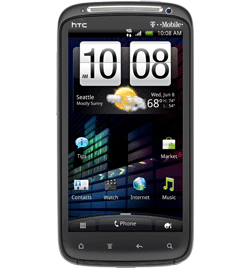
HTC Sensation Battery Life meets the low expectations I’ve heard

Update: A system update just came out and it claims longer battery life, so I will have to test again…

My HTC Sensation looks like it will probably have a battery life of 1.5 days for me before it hit 9% battery. I have heard that even though it boasts That is less than I hoped. I was hoping for two days, so I would only have to plug it in every other evening. Maybe 9% would last me till tonight, but I doubt it.

A few notes on this 1.5 days.

  • I used my HTC Sensation for browsing the web for a good 45 minutes straight in the evening, so maybe I used more battery life than normal last night.
  • I was on the phone no more than 10 minutes
  • I made sure to keep all services, GPS, Wi-fi, etc., off during most of this time as I am fine turning them on when I use them.

So I also may have used less battery than some who must have these services enabled all the time.

I hoped that since I turned off these services, I would get much more than two days, even with good hour of use at some point during that span. But alas, the HTC Sensation Battery Life meets the low expectations I’ve heard from others. I have already bought a car charger (well, actually I bought an iGo tip to go with my iGo Car Charger) and I will certainly buy a an extra charger to have at my desk at work as well.

Transfering contacts to my HTC Sensation 4G

So as I mentioned previously, I just got a new T-Mobile HTC Sensation 4G and of course I had to transfer my files.

UPDATE: I just realized you can skip transferring to a PC and connect your old phone to your new phone via Bluetooth and just transfer the files straight from your old phone to your new phone, eliminating the computer as the middle man.

Retrieving contacts from a deactivated phone to your Computer or to your HTC Sensation 4G

First I had to get them off my Motorola RAZR V3m, which I did using this guys steps:

Tutorial: Move your Verizon contacts from your deactivated RAZR to your iPhone

Though there was no copyright listed, I want to give the author credit, especially since I am including a copy of these steps here (though I am modifying them) in case his site ever goes dark.

You can use these steps to transfer your contacts to a computer or to transfer them directly to your HTC Sensation 4G.

Step 1 – Enable Bluetooth

  1. Turn your Bluetooth on, and make sure it’s discoverable.  Do this for each device.
  2. On either device, scan for or add a new Bluetooth device.
  3. Connect/Pair the two devices.
  4. Enter the pin in both devices to pair them.

Step 2 – Send the Contacts

  1. On your old RAZR V3m, select Contacts on your phone.
  2. Select Options.
  3. Scroll all the way to the bottom of that ridiculous list.  See the one that says, “Send Name Card.”  Select it.
  4. Only one card will have been selected (likely the first on your contacts list).  Hit the “Add” softkey option, and select “Add All.”
  5. Press “Send.”  It’s going to ask you where to send them.  You’re going to tell it to send to the computer to which you just paired your phone.
  6. On your computer or HTC, notice automatic activity.  You will need to confirm that it’s okay with you for the transfer to happen.

You should now have a bunch of .vcf files.

On Windows 7, they are here: C:\Users\UserName\Documents\Bluetooth Exchange Folder

Hopefully, you will find similar steps for your phone if it is not a RAZR V3m

Transferring Contacts to your HTC Sensation 4G

If you transferred the contacts to your HTC Sensation 4g, skip directly to Step 4.

Step 1 – Turn on Bluetooth

  1. Click on the bottom left icon to go to All Apps.
  2. Scroll down and select Settings.
  3. Click on Wireless & Networks.
  4. Turn on Bluetooth by clicking it (make sure the check box is green).

Step 2 – Connect the HTC Sensation 4G to your computer via Bluetooth

  1. On your computer (I used Windows 7) click Add device from your Bluetooth options.
  2. Windows searches for you device. Click it when it is found.
  3. Enter the number that pops up on the screen into your HTC Sensation 4G.

You are now connected via Bluetooth from your laptop and on your laptop the Bluetooth device control window should appear.

Step 3 – Send your .vcf files to the HTC Sensation 4G

  1. On your laptop, in the Bluetooth device control window, click the link under file transfer: “Send files to your (HTC Sensation 4G) phone”.
  2. Click Browse Files.
  3. Add all the .vcf files that you previously transferred to this folder: C:\Users\UserName\Documents\Bluetooth Exchange Folder
  4. Click Send.
  5. On your HTC Sensation 4G, you will get prompted to allow the transfer. Allow it.

The .vcf files should now be on the SD card in your HTC Sensation 4G.

Step 4 – Import all the .vcf files to your HTC Sensation 4G

  1. On your HTC Sensation 4G, click Contacts.
  2. Click the second icon below the screen (has one longer horizontal line above three shorter horizontal lines).
  3. Select Import/Export.
  4. Select Import from SD Card.
  5. Choose the account to import to, I used Google.
  6. Choose to import All vCard files.
  7. Click Ok.

You should now have imported all your contacts.

Hope this helps you.

I just got an Android Phone at a discount

So my new HTC Sensation with T-Mobile arrived today, and I got it for less than $199 it would have cost through T-Mobile direct.

I just thought I would tell you how I got the discount. This discount is not limited to T-Mobile or the HTC Sensation, but is pretty much with any phone you get, and for any company, including Verizon, that you choose to use as your carrier. The discount is different on different phones, but it can save you some money.

Linda Barneck, is an Independent Business Owner in a multi-level-marketing (MLM) company called ACN (Yes, this is the company that was promoted on The Apprentice) but I didn’t get this deal due to family relation. It turns out that anybody who orders through Linda Barneck’s Independent Business Owner site can get this discount.

So click this link and order you new phone with this discount now.

Get your Android Phone at a discount with ACN Wireless Exclusive Deals! 

There are a lot more products that you can get through ACN. You could get a Tablet with a data plan, or a Video Phone, or Satellite TV, or other cool products. See a what products are available in your area here:

Shop for ACN Products & Services

I have personally chosen to not participate directly in MLMs, though I have no problem buying product from an MLM especially if it saves me money, which is what I am doing in this instance. I benefit in no way from you ordering your phone through ACN. My mother did not solicit this post. I am writing this only because I got my phone at a discount.

I almost joined ACN. With ACN being a “techie’s MLM”, I was almost tempted to join. If you are interested in an MLM and you are a bit high-tech, you can become an Independent Business Owner and then buy yourself a new phone through you own account. Just go check out Linda Barneck’s ACN Independent Business Owner page and then click on the “Get Started” link.


A Hello World Android App in C#

This post is a continuation of Writing Android apps in C# using MonoDroid.

Writing your first MonoDroid project

Now that you have installed and configured MonoDroid and its prerequisites, you are ready to create your first project.

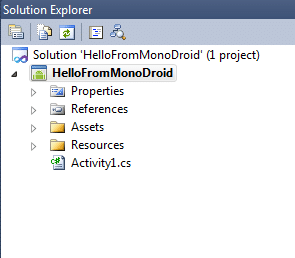
  1. Open Visual Studio.
  2. Go to File | New | Project.
  3. Choose “Mono for Android”. This is a new project type added by the Mono for Android Visual Studio 2010 Plugin.
  4. Give the project a name and click OK.

You now have a sample MonoDroid app.

Running your first MonoDroid App in an Emulator

Now that you have a sample MonoDroid app, learning to deploy it to an Android device and to test it is the next step.

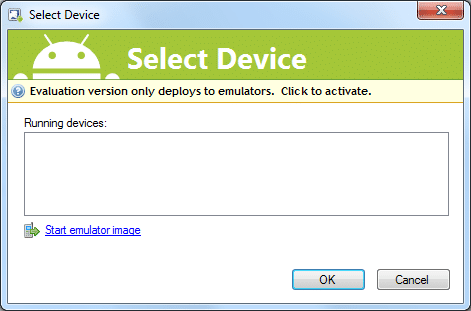
  1. Simply press F5 in your “Mono for Android” Visual Studio project. The following screen appears however, there are no running Android devices.
  2. Click the link to “Start emulator image”.
  3. Wait until your Android emulator starts and you see the graphical display and not just a text display.
  4. Select your emulator from the Running Devices list and click OK.
  5. Wait. It is going to deploy the mono library to your emulator and deploy your app and this can take time.

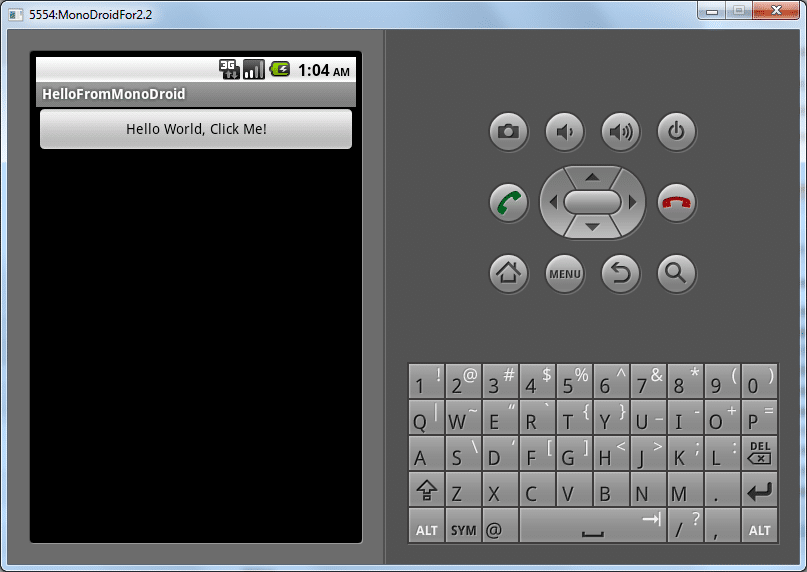
You application should now be running in your Android emulator.

This is just a sample application that increments a counter and displays how many times you have click the button.

You are now ready to start writing your own application.

More Tutorials

Xamarin has multiple Tutorials to help you get a little further along.

MonoDroid Tutororials by Xamarin

Writing Android apps in C# using MonoDroid

As C# developers, many of us would prefer to write Android Apps in C# as well. Novell had promised us MonoDroid, but we were quite concerned as to whether MonoDroid would ever be released when Novell was dismantled.

However, Xamarin spawned from the ashes like a phoenix to restore the viability of MonoDroid, restoring our hopes to writing in C# for the Android platform.

Though I am hopeful that MonoDroid will become popular allowing C# to be a commonly used language for Android devices, there is still some question as to whether Xamarin and its MonoDroid product will survive.

Xamarin is a new company and needs to survive first. Its business is to sell MonoDroid, which is not open source, but is a proprietary product. Unfortunately, MonoDroid may cost too much, preventing adoption among app developers. Xamarin requires a customer base and a continual adoption rate if it is going to survive. If the company folds, what is going to happen to the library and the apps that use it?

Is Development with MonoDroid Free? Yes and No!

Yes and no.

Yes because anybody can use and develop with MonoDroid at no cost. It isn’t until you need to publish an app to the app store that you need to buy a license. You can use the MonoDroid trial for as long as you want. Here is a quote from the trial website. [2]

The evaluation version of Mono for Android does not expire, but enables development and testing against the Android Emulator only.

No, because you need to buy a license once either of the following become true:

  1. You need to test your code directly on a real device and not just an emulated device
  2. You are ready to publish an app to the app store

So what is the cost of MonoDroid? Depends on if you buy Professional, Enterprise, or Enterprise Priority. On the Xamarin store, the following table can be found. To see it you have to add MonoDroid to your cart and then click the “Show product comparison” link. [1]

Professional Enterprise Enterprise Priority
Deploy to your devices Has this feature Has this feature Has this feature
Publish to app stores Has this feature Has this feature Has this feature
Enterprise distribution Has this feature Has this feature
Priority support queue Has this feature
Guaranteed response time Has this feature
License expiration Never Never Never
Update subscription 1 Year 1 Year 1 Year
License usage Original User Seat Seat
Price (USD) $399 $999 $2,499

These costs are very low for business or enterprise customers who have C# developers and want to write Android apps.  The cost of training a C# developer to develop apps for Android in Java may be far greater than training them to develop apps for Android using C# and buying a MonoDroid license.

Is MonoDroid easy to set up?

Update
MonoDroid is not down to a one-click installer.

Here is the old method of Installing without the One-click Installer

MonoDroid is simple to set up.  Xamarin has some simple steps that can be found on their web site. They have MonoDroid installation instructions for installing MonoDroid for use with any of three environments.

  1. Visual Studio  (Important! Visual Studio Express is not supported)
  2. MonoDevelop on Windows
  3. MonoDevelop on Mac OSX

If you don’t have a Visual Studio license and you can’t afford one, then go with MonoDevelop because Visual Studio Express is noted to be enough [3].

However, the Visual Studio install is four simple steps.

  1. Install the Java SDK
  2. Install the Android SDK
  3. Configure your simulator
  4. Install the Mono for Android Visual Studio 2010 Plugin

These are very easy steps to complete, and I won’t repeat the steps here, but once you complete them, you are ready to start writing Android apps in C#.

Once you feel you have everything installed, click the following link to continue reading.

Writing your first MonoDroid project

http://android.xamarin.com/Installation/Windows

Why Technical Support Engineers are not all the same!

Technical Support Engineers are not all the same. There is an inclination in the industry to look down on Technical Support Engineers.

Recently the following article was published:
10 IT positions ranked by prestige

This article didn’t exactly identify the Technical Support Engineer role, but it was unfortunately encompassed in the bottom two positions with the lowest prestige, Technical and Help Desk Analyst.

Should a Technical Support Engineer have the lowest prestige of all technical jobs in the industry? If you think so, you might want to reconsider after read this.

There are multiple levels of technical support and you should know what level of technical support a person is in because that should significantly change your view of this persons technical skills and ability.

What they support and to what level they support it makes a major difference in how to view a Technical Support Engineers background.

Obviously there is a difference between someone who does tech support for a company like Cisco, Microsoft, LANDesk than someone who does technical support for a BowFlex. But this is an obvious difference. A chart that is more of gradient is needed.

Here is some information to help guide you in determining what experience a Technical Support Engineer really has in the technology industry.

1 – Complex product that requires knowledge of an entire area of technology, including both software and hardware environments

These engineers are often not just support engineers. Along with being an expert on their product, they must understand many other concepts such as Networking, Servers and server-side software such as Web Servers, Database Servers, DNS servers, DHCP servers and more. It is not enough to just know how to set up their software, they have to know how to set up the environment around it. They also have to know how to troubleshoot to deep levels both their software and the environment around it.

Usually these engineers practice during portions of their job being Systems Analysts, Consultants, Sales Engineers, IT administrators, Change Controls administrators, developers, and more. They deal will the full gamut of technology and all the areas around it.

Example companies

Desktop Management companies such as LANDesk, SCCM, Kace.
Network Manager Software such as HP OpenView

2 – Specialized product that requires knowledge of one major portion of an IT or Software Environment

These engineers are often not just support engineers. Along with being an expert on their product, they must understand many other concepts in the technology world. It is not enough to just know how to set up their software, they have to know how to set up some portion, though not all, of the environment around it. They also have to know how to troubleshoot to deep levels both their software and their portion of the environment around it.

Like above, these engineers have some limited consulting experience and are gaining understanding of change control and IT administrative processes along with being technology experts.

Example companies

Support for Network Equipment such as Cisco, Juniper Networks, etc…

3 – Specialized product that requires knowledge of a single area of an IT or Software Environment

This person is an expert on their software or hardware product as well as an expert in one or more areas surrounding it.

Individuals who excel here are usually are ready to explode into a new technology after a little as one year in this position.

Example Companies

Business intelligence software, such as QlikView.
Dell, HP and other computer resellers.
Simple Appliances, such as a NAS.
Any company’s internal Computer Help Desk (but be aware of glorified password resetters)

4- Specialized product that requires technical knowledge but only for that exact product

This person is an expert on their software or hardware product but there is not indication they know anything else about technology from this position, which doesn’t mean they don’t, just that this position doesn’t indicate it.

Example Companies

Home consumer products such as Wireless Routers from D-Link, Linksys, etc.

5 – Specialized product that requires knowledge in an area outside of IT but still somewhat technical

This person is an expert on their software or hardware product as well as an expert in one or more areas surrounding it.
Usually this product has interfaces into other technology that not used commonly but Technical Support Engineers usually don’t take the common calls for things that just work, they learn the tough issues, which usually involves integrating with something else. However, they don’t always know that area of technology, just the minimal knowledge to make their product work with it.

Example companies

Software Applications outside of IT: Microsoft Word, Excel.

6 – Specialized product that requires knowledge in an area outside of IT but not exactly technical

This person is an expert on their software or hardware product as well as an expert in one or more areas surrounding it. This expertise is beneficial outside the position but only in limited areas.

Example companies

Software Applications outside of IT:
Adobe Photoshop
Dentrix
gaming software

7 – Specialized product that requires knowledge that is technical but not really related to software or IT at all

This person is an expert product but it is just a simple product that being an expert on it really has no value anywhere else.

Example companies

Television
Cable box companies
radios and sound systems
Cell-phones

8 – Generic product that requires little technical knowledge

This person usually supports something that is sold on a made-for-tv ad, such as an exercise appliance. They usually have a script they follow and this position can be filled by almost anyone who can read and speak.

Example companies

BowFlex
Clock Radios
TechRepublic: ASUS Eee Pad Transformer tablet is a mixed bag

I read this article today and found it very insightful.

ASUS Eee Pad Transformer tablet is a mixed bag

One of the biggest complaints about the tablet is the ability to type and this device eases that some, though not completely.  One interesting quote, I am not sure if I agree with yet, but I have thought it myself is this:

A coworker who owns an iPad displayed some gadget envy when I first brought the Eee Pad Transformer to the office, but he also noted, “with the clam shell format, I think I’d end up using it mostly like that, and not like a tablet.” It turns out that this was a very astute observation, because my experience has been that I haven’t had much desire or reason to undock the tablet. This makes me wonder if tablet mania may not be a bit of a novelty.

I don’t know if I completely agree that tablets are a novelty. I remember the Palm Pilot was novelty that wore off and I am on the fence right now as to whether the iPad and devices such as the Motorola Xoom will end up as paper weights on peoples desk because typing and other uses just aren’t there and a laptop or desktop computer is desired.  However, this ASUS Eee Pad Transformer tablet may be an important bridge to these technologies, something that didn’t exist in the Palm Pilot days, so problems that existed for the Palm Pilot and still exist in tablets today may have new solutions that allow the technology to go further.