Archive for the ‘Operating Systems’ Category.

How to write a FreeBSD Kernel Module

You may be think that writing your first kernel module is going to be a long, painful, grueling task, but really it is only slightly harder than writing your first program, Hello World!, in C or C++.

Lets break this into nice easy steps.

Prerequisites

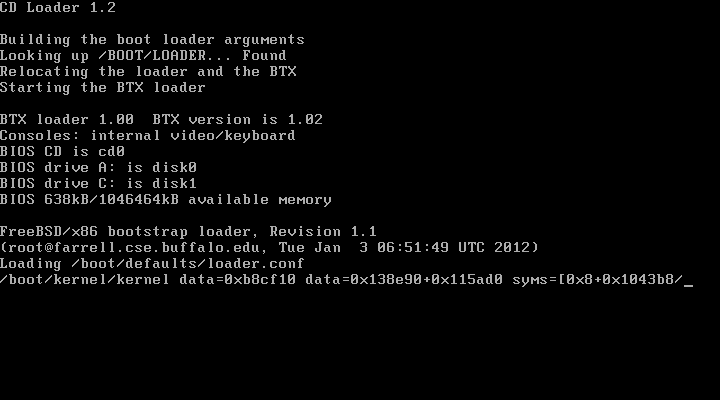
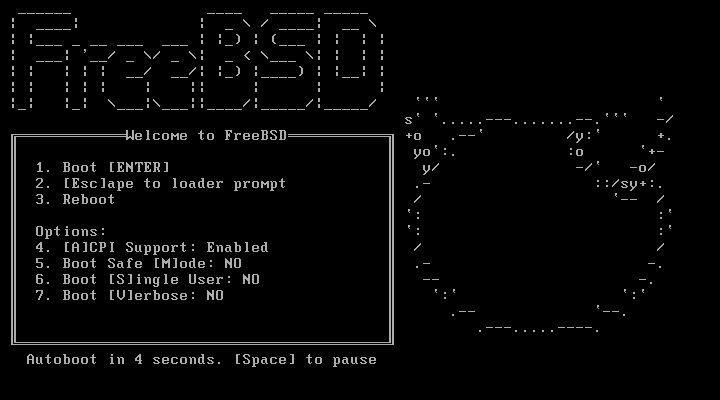
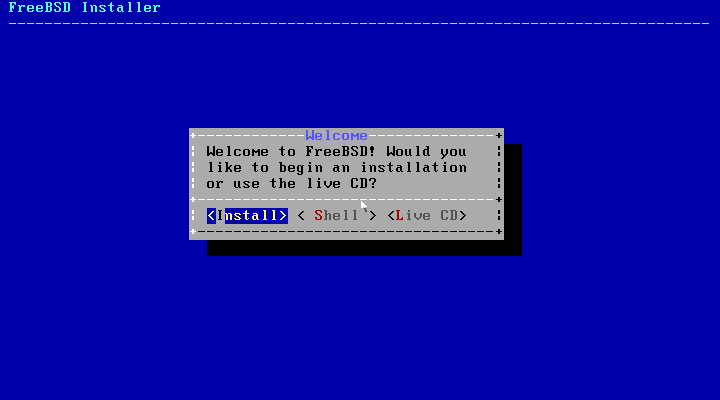
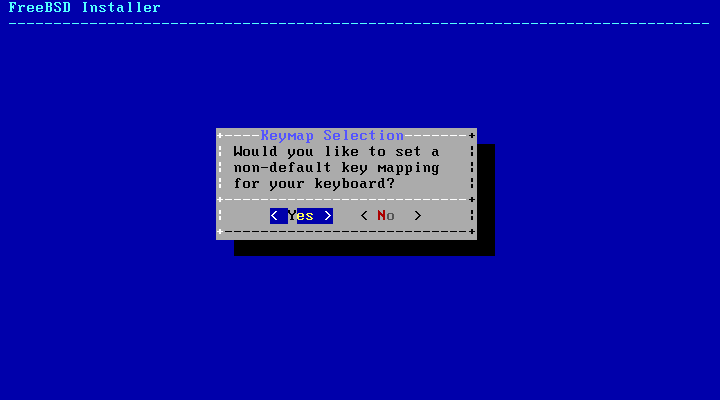
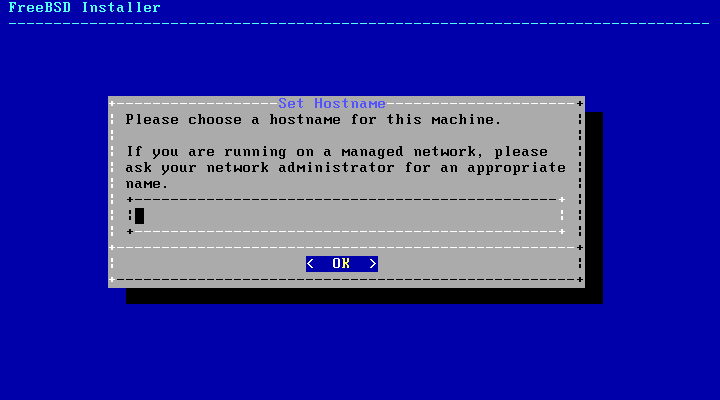
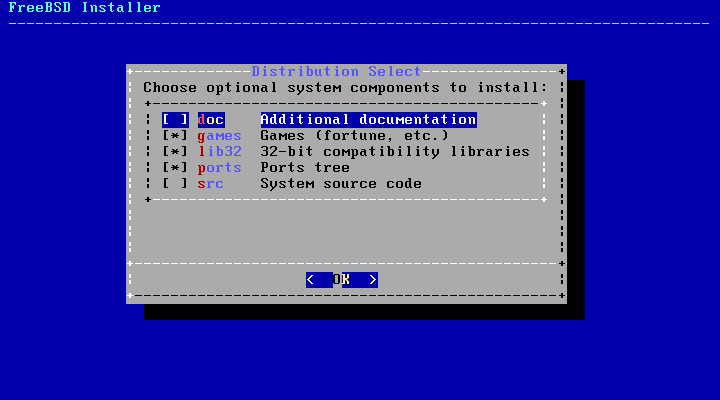
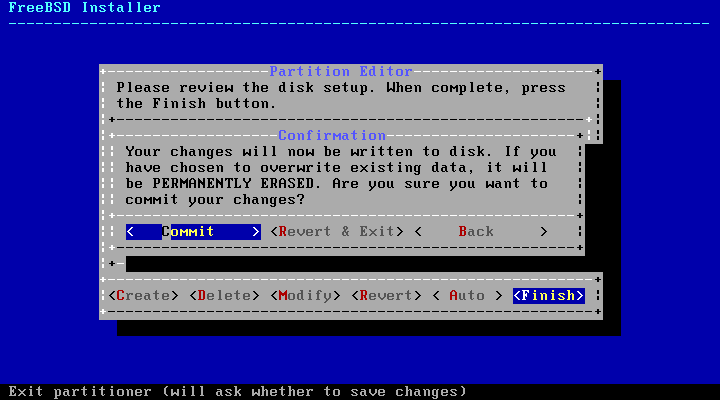
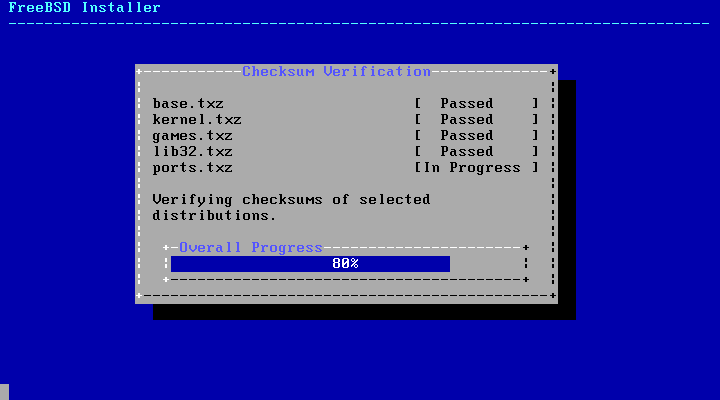
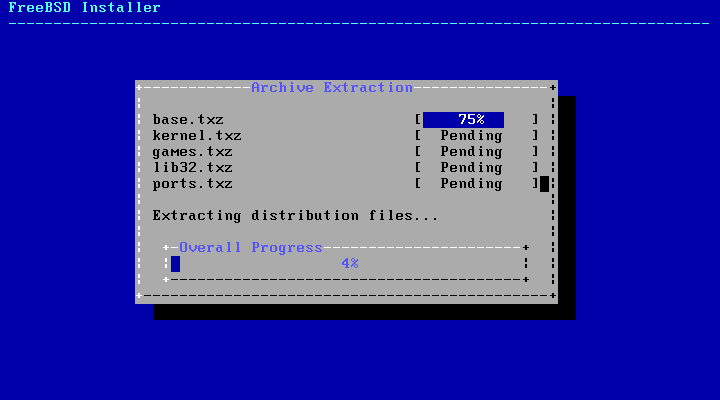
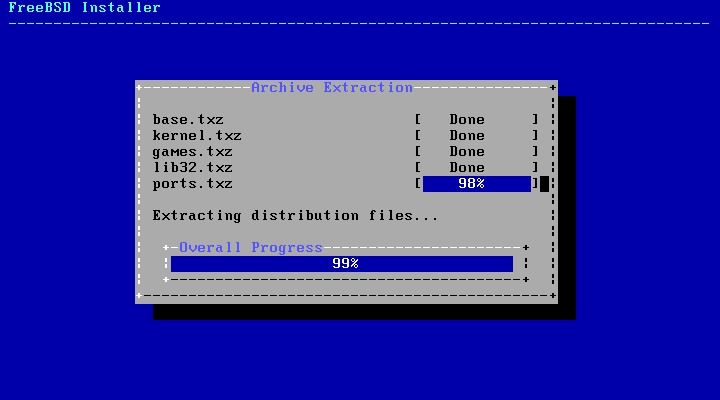
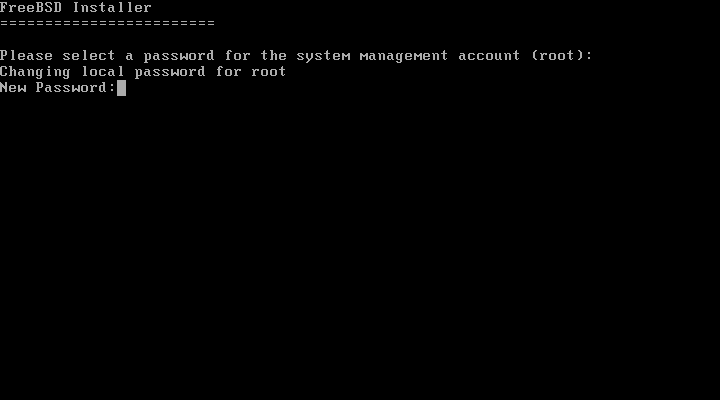
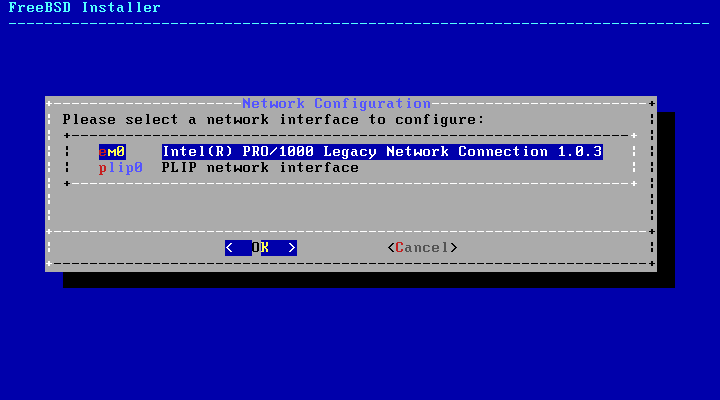
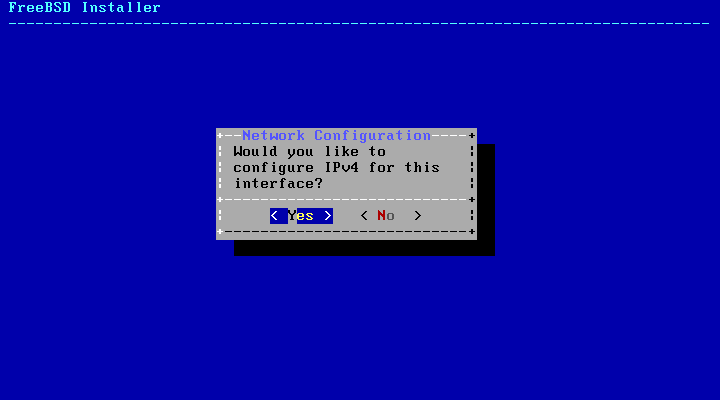
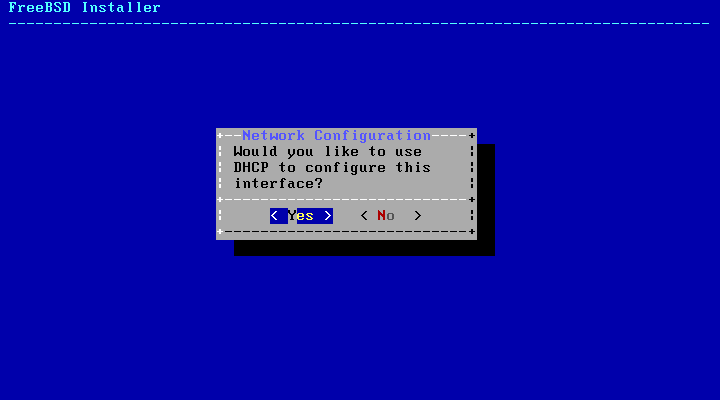
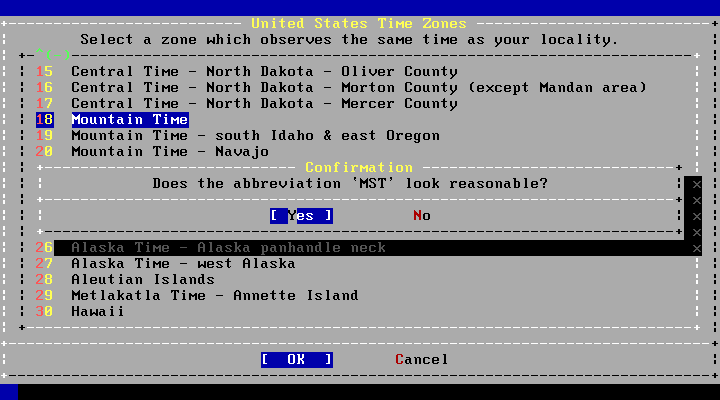
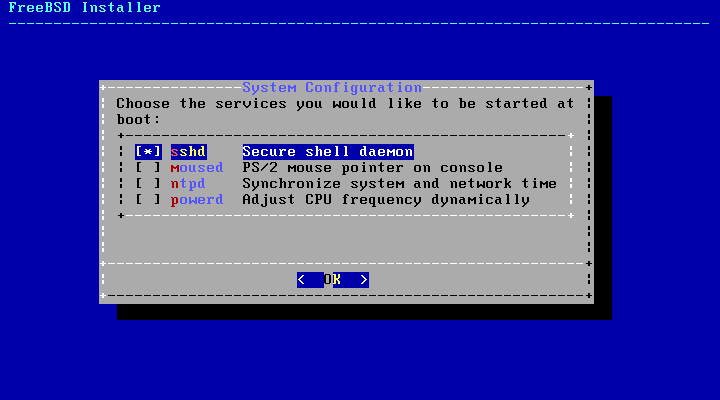
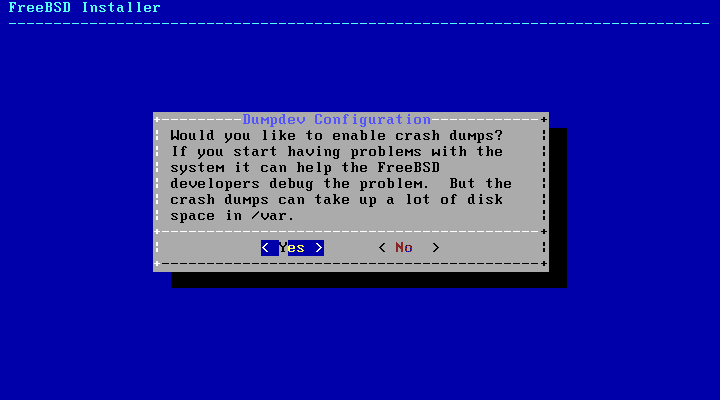
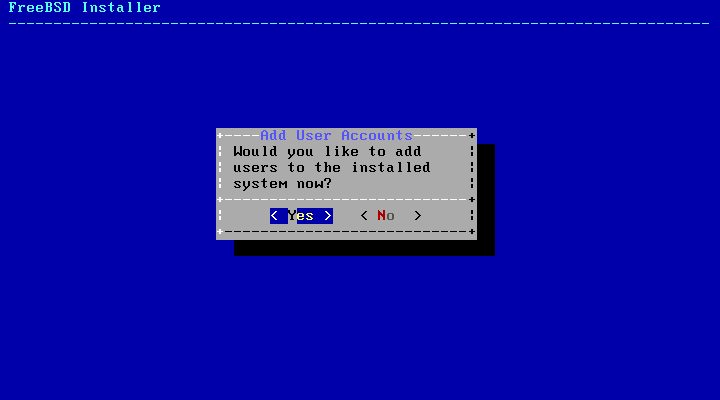
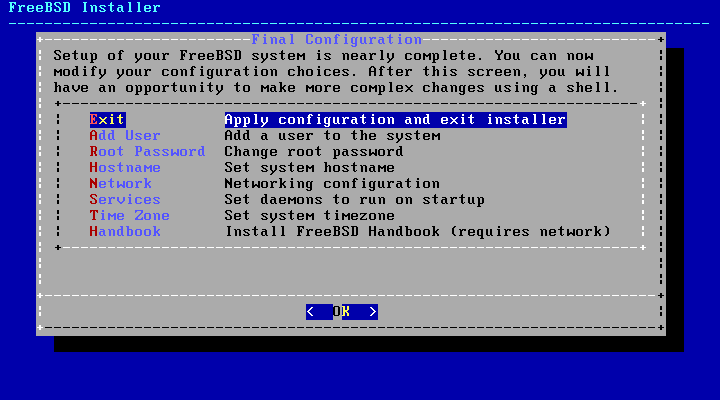
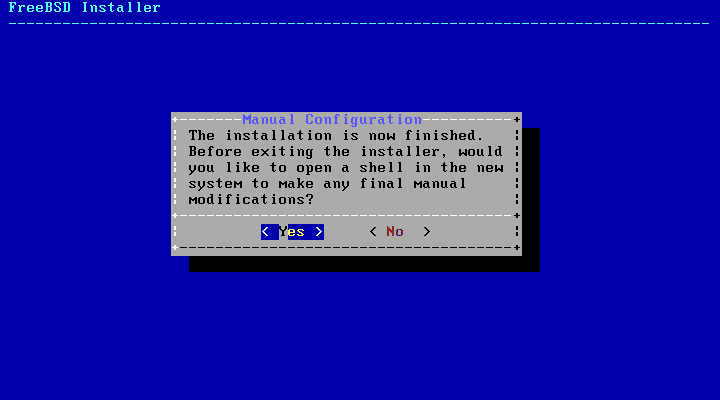
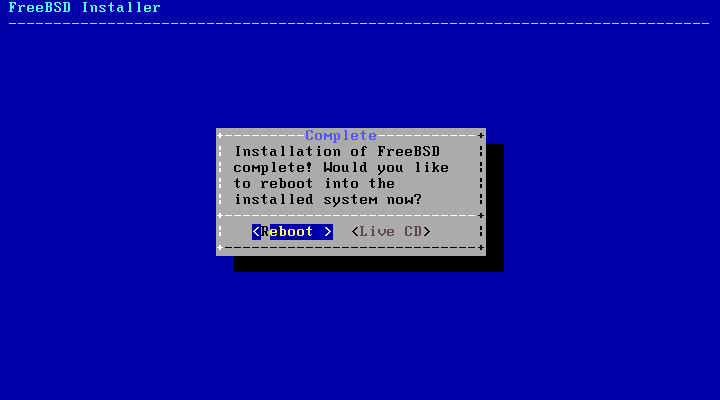
It is assumed you have installed FreeBSD already. If not, follow the instructions below with one change: Install the FreeBSD source during the “Choose Distribution” section.

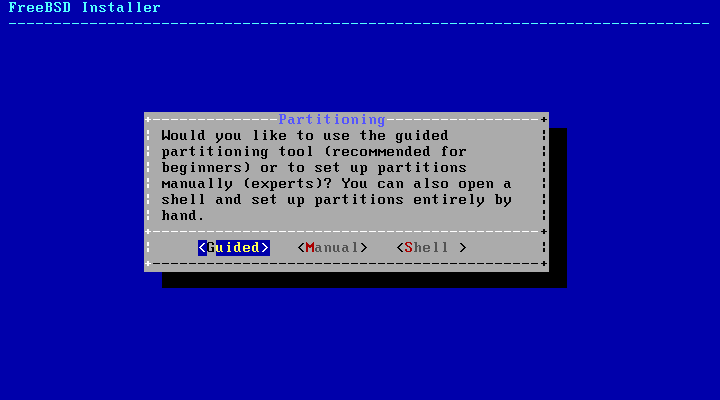
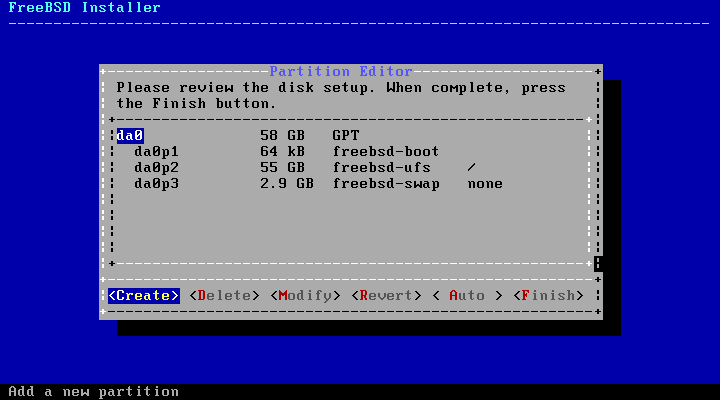
How do I install FreeBSD?

Step 1 – Create a basic module file

A FreeBSD kernel module is written in C. This is going to be only a slightly harder than writing hello world in C. We are going to create a single text file with a .c extension and put some C code in it.

  1. Create a folder to hold you project. I used this directory:
    /usr/home/jared/code/kernel/hwm
  2. Create the file to hold your code. I named my file this:
    hello_world_kmod.c
  3. Edit the file with you favorite editor, vi, vim, emac, ee. I used easy editor (ee):
    ee hello_world_kmod.c
  4. Add the following code to the file.I have broken the code of the simplest kernel module into four parts or steps:
    1. Add four required #include statements.
    2. Create the kernel load/unload event handler.
    3. Create a struct to name the module and point to the event handler function.
    4. Call the DECLARE_MODULE macro.
    /*
     * Step 1 - Add the four needed libraries to include
     */
    #include <sys/param.h>
    #include <sys/module.h>
    #include <sys/kernel.h>
    #include <sys/systm.h>
    
    /*
     * Step 2 - Handle the load/unload event
     */
    static int EventHandler(struct module *inModule, int inEvent, void *inArg)
    {
            // Set return code to 0
            int returnCode = 0;
    
            switch (inEvent)
            {
              case MOD_LOAD:
                    uprintf("Hello, World! \n");
                    break;
              case MOD_UNLOAD:
                    uprintf("Bye, World! \n");
                    break;
              default:
                    returnCode = EOPNOTSUPP;
                    break;
            }
    
            return(returnCode);
    }
    
    /*
     * Step 3 - Name the module and the event hander function
     *          This is done using a struct of type moduledata_T
     */
    static moduledata_t  moduleData = {
            "hello_world_kmod",     // Module Name
            EventHandler,           // Event handler function name
            NULL                    // Extra data
    };
    
    /*
     * Step 4 - Declare the module
     *          This is done with the DECLARE_MODULE macro
     */
    DECLARE_MODULE(hello_world_kmod, moduleData, SI_SUB_DRIVERS, SI_ORDER_MIDDLE);
    
  5. Save and close the file.

Step 2 – Create a Makefile

Creating a Makefile to build a kernel module is quite easy because almost all the work is done for you. FreeBSD has a file that you include, /usr/src/share/mk/bsd.kmod.mk, that does most of the work for you and all you have to do is include it.

  1. In the same directory where you put your .c file, create a new text file called Makefile.
  2. There are three basic parts to the kernel module Makefile:
    1. Module name
    2. Source files
    3. Include of bsd.kmod.mk
    # Module Name
    KMOD = hello_world_kmod
    
    # Source files
    
    SRCS = hello_world_kmod.c
    
    # Include <bsd.kmod.mk>
    .include <bsd.kmod.mk>
    
  3. Save and close the file.

Step 3 – Run make to build the module

  1. In the command prompt, in the directory where you have created your code and make file, run make.
    > cd /usr/home/jared/code/kernel/hwm
    > make
    Warning: Object directory not changed from original /usr/home/jared/code/kernel/hwm
    @ -> /usr/src/sys
    machine -> /usr/src/sys/amd64/include
    x86 -> /usr/src/sys/x86/include
    cc -O2 -pipe -fno-strict-aliasing -Werror -D_KERNEL -DKLD_MODULE -nostdinc   -I. -I@ -I@/contrib/altq -finline-limit=8000 --param inline-unit-growth=100 --param large-function-growth=1000 -fno-common  -fno-omit-frame-pointer  -mno-sse -mcmodel=kernel -mno-red-zone -mno-mmx -msoft-float  -fno-asynchronous-unwind-tables -ffreestanding -fstack-protector -std=iso9899:1999 -fstack-protector -Wall -Wredundant-decls -Wnested-externs -Wstrict-prototypes  -Wmissing-prototypes -Wpointer-arith -Winline -Wcast-qual  -Wundef -Wno-pointer-sign -fformat-extensions  -Wmissing-include-dirs -fdiagnostics-show-option -c hello_world_kmod.c
    ld  -d -warn-common -r -d -o hello_world_kmod.ko hello_world_kmod.o
    :> export_syms
    awk -f /sys/conf/kmod_syms.awk hello_world_kmod.ko  export_syms | xargs -J% objcopy % hello_world_kmod.ko
    objcopy --strip-debug hello_world_kmod.ko
    >
    

Step 4 – Test loading an unloading the module

Loading and unloading kernel modules must be done as root. If you have sudo installed, use it, otherwise install it (Configuring sudo on FreeBSD) or su to root.

  1. Use kldload to load the module and kldunload to unload the module.
    > sudo kldload ./hello_world_kmod.ko
    Hello, World!
    > sudo kldunload ./hello_world_kmod.ko
    Bye, World!
    >
    

You have now performed the Hello World version of a FreeBSD kernel module.

Resources

Android and Xml Serialization with Simple

Xml serialization is almost becoming a standard requirement for a language these days and so as I have been taking an Android class and I couldn’t find an Xml Serialization library as part of Android by default, I set out in search of one.

I came across a java XML Serialization project called Simple.

So here is a quick entry-level example of how to use Simple in an Android development project.

Note: This walk-thru assumes you are using Eclipse.

Step 1 – Create a new Android Project

  1. Go to File | New Project and select Android.
  2. Provide a Project Name.
  3. Select the minimum build target.
  4. Provide a Package name.
  5. Click Finish.

Step 2 – Download Simple

  1. Go to the Simple download page: http://simple.sourceforge.net/download.php
  2. Extract the zip file.

Step 3 – Add the Simple library to your project

  1. Create a folder called libs in your project.
  2. Copy the jar file called simple-xml-2.6.2.jar to the libs directory you just created.Note: Be aware your version may be newer than 2.6.2.
  3. In Eclipse, right-click on simple-xml-2.6.2.jar (if it doesn’t show up refresh) and choose Build Path | Add to Build Path.

Step 4 – Create an Serializeable object

  1. Right-click on your package and choose New | Class.
  2. Provide a class name and click ok.
  3. The following is an example Person class:Person.java
    package org.jaredbarneck.cs6890;
    
    import org.simpleframework.xml.Element;
    import org.simpleframework.xml.Root;
    
    @Root
    public class Person
    {
    
    	public Person()
    	{
    	}
    
    	public Person(String inFirstName, String inLastName)
    	{
    		SetFirstname(inFirstName);
    		SetLastname(inLastName);
    	}
    
    	@Element
    	private String FirstName;
    
    	public String GetFirstName()
    	{
    		return FirstName;
    	}
    
    	public void SetFirstname(String inFirstName)
    	{
    		FirstName = inFirstName;
    	}
    
    	@Element
    	private String LastName;
    
    	public String GetLastName()
    	{
    		return LastName;
    	}
    
    	public void SetLastname(String inLastName)
    	{
    		LastName = inLastName;
    	}
    
    	@Override
    	public boolean equals(Object inObject)
    	{
    		if (inObject instanceof Person)
    		{
    			Person inPerson = (Person)inObject;
    			return this.FirstName.equalsIgnoreCase(inPerson.FirstName)
    				&& this.LastName.equalsIgnoreCase(inPerson.LastName);
    		}
    		return false;
    	}
    }
    

Step 5 – Serialize and Deserialize in your main Activity

  1. Add the following code to your main Activity:Note: Code should be clear and is commented.PersonActivity.java
    package org.jaredbarneck.cs6890;
    
    import java.io.File;
    
    import org.simpleframework.xml.Serializer;
    import org.simpleframework.xml.core.Persister;
    
    import android.app.Activity;
    import android.os.Bundle;
    
    public class PersonActivity extends Activity
    {
    	public void onCreate(Bundle savedInstanceState)
    	{
    		super.onCreate(savedInstanceState);
    		setContentView(R.layout.main);
    
    		// Create a Person object
    		Person person1 = new Person("John", "Johnson");
    
    		// Create a file to save to and make sure to use the path provided from
    		// getFilesDir().getPath().
    		File xmlFile = new File(getFilesDir().getPath() + "/Person.xml");
    
    		// Serialize the Person
    
    		try
    		{
    			Serializer serializer = new Persister();
    			serializer.write(person1, xmlFile);
    		}
    		catch (Exception e)
    		{
    			e.printStackTrace();
    		}
    
    		// Create a second person object
    		Person person2 = null;
    
    		// Deserialize the Person
    		if (xmlFile.exists())
    		{
    			try
    			{
    				Serializer serializer = new Persister();
    				person2 = serializer.read(Person.class, xmlFile);
    			}
    			catch (Exception e)
    			{
    				e.printStackTrace();
    			}
    		}
    
    		boolean b = person1.equals(person2);
    	}
    }
    

Go ahead and try this in your Android emulator and step through it with a debugger.

You have now successfully implemented Xml Serialization in Java on Android using Simple.

How to make a Makefile?

Most software compiled on BLU (BSD/Linux/Unix) operating systems is done using make.

The simplest Makefile

The simplest Makefile compiles one single executable. Think of your simplest “Hello, World!” project.

HelloWorld.cpp

#include <iostream>
using namespace std;
int main() {
  cout << "Hello, World!";
  return(0);
}

Of course, for one file you don’t need a Makefile. You could simply run this command that will compile hw.cpp

g++ -o HelloWorld HelloWorld.cpp

So even though a Makefile seems useless for a single file, here is how you would do it.

all:
	g++ -o HelloWorld HelloWorld.cpp

Notice that you have a label and the same compile command one line below the label.

Important! The syntax requires the second line to start with a tab.

Adding objects to your Makefile

Lets assume instead of one file, you have the three file HelloWord.

  • Main.cpp
  • HelloWorld.h
  • HelloWord.cpp

Main.cpp

#include <iostream>
#include "HelloWorld.h"

using namespace std;

int main()
{
  HelloWorld hw = HelloWorld();
  cout << hw.Text << endl;
}

HelloWorld.h

#include <iostream>

using namespace std;

class HelloWorld
{
public:
  HelloWorld();
  ~HelloWorld();

  string Text;
};

HelloWorld.cpp

#include "HelloWorld.h"

HelloWorld::HelloWorld()
{
  Text = string("Hello, World!");
}

HelloWorld::~HelloWorld()
{
}

This simple project can also easily be compiled without a Makefile using this command line.

g++ -o HelloWorld Main.cpp HelloWorld.cpp

However, even with only three files you can start to see how it is much easier to type make than the lengthening command above.

Makefile

all:
	g++ -o HelloWorld Main.cpp HelloWorld.cpp

This is not perfect however, as this compiles both files every time make is run. If changes are made only to Main.cpp there is no reason to recompile HelloWorld.cpp. We can accomplish this by compiling HelloWorld.cpp to a HelloWorld.o module.

all: HelloWorld.o
	g++ -o HelloWorld Main.cpp HelloWorld.o

Similarly if you make changes to HelloWorld.h or HelloWorld.cpp, why do you need to recompile Main.cpp? So you can make it a module too.

all: Main.o HelloWorld.o
	g++ -o HelloWorld Main.o HelloWorld.o

Now only the libraries that have been modified will be recompiled when you run make. This can save significant build time when the project size increases.

Using variables in your Makefile

Mistakes are annoying.  Having to type the same thing in multiple places often leads to mistakes and typos. If you look at the above, there is duplication that is unnecessary.

Makefile with duplication

all: Main.o HelloWorld.o
	g++ -o HelloWorld Main.o HelloWorld.o

Makefile using a variable to avoid duplication

objs = Main.o HelloWorld.o
all: ${objs}
	g++ -o HelloWorld ${objs}

We can even add more variables which may not seem useful now, but are useful later.

CXX = g++
CXXFLAGS =
objs = Main.o HelloWorld.o
Outfile = HelloWorld

all: ${objs}
	${CXX} ${CXXFLAGS} -o ${Outfile} ${objs}

Think about it. Right now you only have one build command, but someday on a huge project you may have dozens and possibly hundreds. Could you imaging changing the CXXFLAGS everywhere? We don’t even have one listed yet, but of course, with the variable you only have to change it once in one place and it will work everywhere you used it.

Adding make clean to your Makefile

It is very common to want to delete all build files and build again. This is often done with the make clean command. But to get make clean to work you have to create a section or label in the make file called clean.

Because we already have variables, it is easy to configure the Makefile to support make clean.

Makefile with clean

CC = g++
CXXFLAGS = -W
objs = Main.o HelloWorld.o
Outfile = HelloWorld

all: ${objs}
	${CC} ${CXXFLAGS} -o ${Outfile} ${objs}

clean:
	rm ${objs} ${outfile}

So simple, we just use rm to delete the files we created, which are all in variables so we had a nice clean short command.

Adding debugging to your make file

There are two schools of thought for debugging.

  • All builds should be release builds unless you run make debug.
  • All builds should be debug builds unless you run make release.

I am not going to tell you which school of thought you should have.  What matters is that you can configure the Makefile to perform how you want it to.

This make file will always build without debugging (release) unless yous specify make debug.

CXX = g++
CXXFlags = -W
objs = Main.o HelloWorld.o
Outfile = HelloWorld

all: objects build

objects: ${objs}

debug: clean
CXXFLAGS += -g
LDFLAGS += -g

debug: objects build

build:
	${CXX} ${CXXFLAGS} -o ${Outfile} ${objs}

clean:
	rm -f ${objs} ${Outfile}

Notice we set LDFLAGS but we never actually call it. It is a special variable that is called automatically by the linker when creating the objects. Yes it must be capitalized.

How to create an Android menu?

Ok, so adding a menu that pops up from the bottom when the menu button is clicked is very common and quite easy to do.

Note: This assumes you have the Android SDK, Emulator, and Eclipse all working already.

Step 1 – Create your Android project

  1. In Eclipse, select File | New Project | Android | Android Project.
  2. Give your project a Name.
    I named this project “HelloAll”.
  3. Select the Build Target (the minimum version of Android).
    I selected Android 2.2.
  4. Enter a Package name.
    Package name is like a namespace, it can be anything you want, but you should actually choose a name as carefully as you choose and the name of an object.  I named the package this: org.rhyous.
  5. Click Finish.

Your project is now created.

Step 2 – Add an XML file for the menu

  1. Expand the res directory in your project.
  2. Right-click on the layout folder and choose New | Other.
  3. Choose XML | XML file and click Next.
  4. Name the file.
    I named my file menu.xml.
  5. Click Finish.
  6. Add the following text into your menu:
    <menu xmlns:android="http://schemas.android.com/apk/res/android">
        id="@+id/menu_item_1" android:title="@string/menu_1"/>
        id="@+id/menu_item_2" android:title="@string/menu_2"/>
        <item android:id="@+id/menu_item_3" android:title="@string/menu_3"/>
    </menu>
    

Step 3 – Add the strings for the menu items

  1. Expand the res\values directory in your project.
  2. Open the strings.xml.
  3. Add strings for each menu item.
    Make sure you use the same id strings you used in the menu.xml for the title of each menu item.
    Your strings.xml should now look like this:

    <?xml version="1.0" encoding="utf-8"?>
    <resources>
        <string name="hello">Hello World, HelloAllActivity!</string>
        <string name="app_name">HelloAll</string>
        <string name="menu_1">Menu 1</string>
        <string name="menu_2">Menu 2</string>
        <string name="menu_3">Menu 3</string>
    </resources>
    

You now have a menu and strings for each menu item.

Step 4 – Overload onCreateOptionsMenu

  1. Open your Activity.
    Mine is src\org.rhyous\HelloAllActivity.java.
    It should look like this:

    package org.rhyous;
    
    import android.app.Activity;
    import android.os.Bundle;
    
    public class HelloAllActivity extends Activity {
    	/** Called when the activity is first created. */
    	@Override
    	public void onCreate(Bundle inSavedInstanceState) {
    		super.onCreate(inSavedInstanceState);
    		setContentView(R.layout.main);
    	}
    }
    
  2. Add code to override onCreateOptionsMenu and add code to inflate the menu.
    	@Override
    	public boolean onCreateOptionsMenu(Menu inMenu) {
    		super.onCreateOptionsMenu(inMenu);
    		getMenuInflater().inflate(R.layout.menu, inMenu);
    		return true;
    	}
    

You can now build your application and test that the menu pops up. However, the menu doesn’t do anything yet.

Step 5 – Overload onCreateOptionsMenu

  1. Add code to override onOptionsItemSelected and add code to inflate the menu.
  2. Use a switch statement with the inItem.getItemId() function to perform the appropriate action for each menu item.
    	@Override
    	public boolean onOptionsItemSelected(MenuItem inItem) {
    		switch (inItem.getItemId()) {
    		case R.id.menu_item_1:
    			// Do something here
    			return true;
    		case R.id.menu_item_2:
    			// Do something here
    			return true;
    		default:
    			// Should never get here
    			return false;
    		}
    

Based on the item clicked, the appropriate code will run.

Hope you enjoyed this simple Android development example.

Ghost 2.5 Beta 2 available – Ghost is a BSD distribution based on GNOME

Ghost 2.5 is a BSD desktop distribution based on FreeBSD. This version is keeping up with the latest FreeBSD 9 release. This is both a live distribution as well as an installer for FreeBSD 9.

It is exciting for a lot of BSD users who didn’t really have an out-of-the-box GNOME option on FreeBSD to have a distribution where GNOME is the focus.

The DVD ISO in 64 bit is only 1.3 GB, though there is a “lite” version that is on a single CD.

It is nice that they are using pcsysintall for their installer, though they are in early stages as the installer is a text installer and not for an Ubuntu user yet. ;-)

If you are excited about this project go ahead and give them a donation. I just tossed them $5. http://ghostbsd.org/donate/

PC-BSD 9.2 Beta 2 available for testing – I just installed it

PC-BSD 9.2 Beta 2 is available for testing and I just installed it. This is probably the best desktop OS that is not Windows, Mac, or Linux.

The installer was already a nice easy GUI, so I didn’t expect many changes and it is still nice and easy to use, and just works.

The installer does present new features about PC-BSD 9.2, in that you can choose from a list of Desktop Managers. Before KDE was it during install and if you wanted something else, you could change it later, but now you have a nice list of GNOME, KDE, and others.

I chose KDE because I usually use KDE or Fluxbox and when I have plenty of system power, I go with KDE and this system is on a beefy VM.

I did miss seeing Firefox as an installable application during install? Not a big deal, as I will install it later…but I was used to it being there.

The install went flawlessly.

Setting up the Video Card still is a screen. It would be best to have it just work and not even have the screen at all. But it still prompts me and I still have to do it. I would like it to detect that I am on VMWare and just install the VMWare video driver for me or if I am on hardware, just install the driver I need.

There is a nice “tip” screen post login.

Branding is very important! AppCafe is probably one of the first times I have ever seen PC-BSD really do something that I consider a good brand. I have an opinion that the PC-BSD, which is 5 letters where you just say the letters name like an acronym, is a horrible brand and should be changed as soon as possible. However, AppCafe is great. It goes with the whole App Store idea that is trendy currently. Good move!

I quickly found Firefox and Chrome in the AppCafe. The search feature is great, otherwise they were under the “Web” group. I was curious as to why Firefox was still version 4.0.1 as Firefox is on 6.x now. The one downside is that I would really like Firefox to load a lot faster.

Flash…Yes, it works with a beta note: In previous versions, flash has worked perfectly, and it will in the next release too. However, turns out that this beta has a bug where you have to run a command to enable flash…oops. That is why we have betas. Expect this to work in the final release as Flash has worked out of the box now for multiple releases.

For KDE, After installation, App icons are placed in a desktop folder, that is a transparent box on the screen, giving the system a sense of “flashiness”.

A lot of the default Apps that were installed, such as K3B, a DVD/CD burning software, and a video player and music player are all there.

I am probably going to install a GNOME only version as well and give it a look.

Installing IIS 7 from the command line on Windows 2008

Ok, so our customers are tired of having us have an IIS prerequisite in our product installer. They want us to install and configure IIS for them.

So I found this article: Installing IIS 7.0 from the Command Line

I am testing the command line provided in this article in a command prompt. I have verified the command prompt is running as Administrator.

On Windows 2008 R2, it failed with this error: -2146498548

So if at first you don’t succeed, try, try again.

Well, I don’t actually need everything in the script. So I tested this command line:

start /w PkgMgr.exe /iu:IIS-WebServerRole;

This command succeeded. The resulting installed IIS Roles and Services are these.

Note: This output is give by running this command: servermanagercmd.exe -query

[X] Web Server (IIS)  [Web-Server]
     [X] Web Server  [Web-WebServer]
         [X] Common HTTP Features  [Web-Common-Http]
             [X] Static Content  [Web-Static-Content]
             [X] Default Document  [Web-Default-Doc]
             [X] Directory Browsing  [Web-Dir-Browsing]
             [X] HTTP Errors  [Web-Http-Errors]
             [ ] HTTP Redirection  [Web-Http-Redirect]
             [ ] WebDAV Publishing  [Web-DAV-Publishing]
         [ ] Application Development  [Web-App-Dev]
             [ ] ASP.NET  [Web-Asp-Net]
             [ ] .NET Extensibility  [Web-Net-Ext]
             [ ] ASP  [Web-ASP]
             [ ] CGI  [Web-CGI]
             [ ] ISAPI Extensions  [Web-ISAPI-Ext]
             [ ] ISAPI Filters  [Web-ISAPI-Filter]
             [ ] Server Side Includes  [Web-Includes]
         [X] Health and Diagnostics  [Web-Health]
             [X] HTTP Logging  [Web-Http-Logging]
             [ ] Logging Tools  [Web-Log-Libraries]
             [X] Request Monitor  [Web-Request-Monitor]
             [ ] Tracing  [Web-Http-Tracing]
             [ ] Custom Logging  [Web-Custom-Logging]
             [ ] ODBC Logging  [Web-ODBC-Logging]
         [X] Security  [Web-Security]
             [ ] Basic Authentication  [Web-Basic-Auth]
             [ ] Windows Authentication  [Web-Windows-Auth]
             [ ] Digest Authentication  [Web-Digest-Auth]
             [ ] Client Certificate Mapping Authentication  [Web-Client-Auth]
             [ ] IIS Client Certificate Mapping Authentication  [Web-Cert-Auth]
             [ ] URL Authorization  [Web-Url-Auth]
             [X] Request Filtering  [Web-Filtering]
             [ ] IP and Domain Restrictions  [Web-IP-Security]
         [X] Performance  [Web-Performance]
             [X] Static Content Compression  [Web-Stat-Compression]
             [ ] Dynamic Content Compression  [Web-Dyn-Compression]
     [X] Management Tools  [Web-Mgmt-Tools]
         [X] IIS Management Console  [Web-Mgmt-Console]
         [ ] IIS Management Scripts and Tools  [Web-Scripting-Tools]
         [ ] Management Service  [Web-Mgmt-Service]
         [ ] IIS 6 Management Compatibility  [Web-Mgmt-Compat]
             [ ] IIS 6 Metabase Compatibility  [Web-Metabase]
             [ ] IIS 6 WMI Compatibility  [Web-WMI]
             [ ] IIS 6 Scripting Tools  [Web-Lgcy-Scripting]
             [ ] IIS 6 Management Console  [Web-Lgcy-Mgmt-Console]
     [ ] FTP Server  [Web-Ftp-Server]
         [ ] FTP Service  [Web-Ftp-Service]
         [ ] FTP Extensibility  [Web-Ftp-Ext]
     [ ] IIS Hostable Web Core  [Web-WHC]

This is almost enough but I also need these more than the default. I also need the ones below that I have put an “I” in.

[X] Web Server (IIS)  [Web-Server]
     [X] Web Server  [Web-WebServer]
         [X] Common HTTP Features  [Web-Common-Http]
             [X] Static Content  [Web-Static-Content]
             [X] Default Document  [Web-Default-Doc]
             [X] Directory Browsing  [Web-Dir-Browsing]
             [X] HTTP Errors  [Web-Http-Errors]
             [ ] HTTP Redirection  [Web-Http-Redirect]
             [ ] WebDAV Publishing  [Web-DAV-Publishing]
         [ ] Application Development  [Web-App-Dev]
             [ ] ASP.NET  [Web-Asp-Net]
             [ ] .NET Extensibility  [Web-Net-Ext]
             [I] ASP  [Web-ASP]
             [I] CGI  [Web-CGI]
             [I] ISAPI Extensions  [Web-ISAPI-Ext]
             [ ] ISAPI Filters  [Web-ISAPI-Filter]
             [I] Server Side Includes  [Web-Includes]
         [X] Health and Diagnostics  [Web-Health]
             [X] HTTP Logging  [Web-Http-Logging]
             [ ] Logging Tools  [Web-Log-Libraries]
             [X] Request Monitor  [Web-Request-Monitor]
             [ ] Tracing  [Web-Http-Tracing]
             [ ] Custom Logging  [Web-Custom-Logging]
             [ ] ODBC Logging  [Web-ODBC-Logging]
         [X] Security  [Web-Security]
             [ ] Basic Authentication  [Web-Basic-Auth]
             [I] Windows Authentication  [Web-Windows-Auth]
             [ ] Digest Authentication  [Web-Digest-Auth]
             [ ] Client Certificate Mapping Authentication  [Web-Client-Auth]
             [ ] IIS Client Certificate Mapping Authentication  [Web-Cert-Auth]
             [ ] URL Authorization  [Web-Url-Auth]
             [X] Request Filtering  [Web-Filtering]
             [ ] IP and Domain Restrictions  [Web-IP-Security]
         [X] Performance  [Web-Performance]
             [X] Static Content Compression  [Web-Stat-Compression]
             [ ] Dynamic Content Compression  [Web-Dyn-Compression]
     [X] Management Tools  [Web-Mgmt-Tools]
         [X] IIS Management Console  [Web-Mgmt-Console]
         [ ] IIS Management Scripts and Tools  [Web-Scripting-Tools]
         [ ] Management Service  [Web-Mgmt-Service]
         [I] IIS 6 Management Compatibility  [Web-Mgmt-Compat]
             [I] IIS 6 Metabase Compatibility  [Web-Metabase]
             [ ] IIS 6 WMI Compatibility  [Web-WMI]
             [ ] IIS 6 Scripting Tools  [Web-Lgcy-Scripting]
             [ ] IIS 6 Management Console  [Web-Lgcy-Mgmt-Console]
     [ ] FTP Server  [Web-Ftp-Server]
         [ ] FTP Service  [Web-Ftp-Service]
         [ ] FTP Extensibility  [Web-Ftp-Ext]
     [ ] IIS Hostable Web Core  [Web-WHC]

So the article was somewhat correct. Turns out this command line works:

start /w PkgMgr.exe /iu:IIS-WebServerRole;IIS-CommonHttpFeatures;IIS-StaticContent;IIS-DirectoryBrowsing;IIS-HttpRedirect;IIS-ApplicationDevelopment;IIS-ASP;IIS-CGI;IIS-ISAPIExtensions;IIS-ServerSideIncludes;IIS-Security;IIS-WindowsAuthentication;IIS-WebServerManagementTools;IIS-ManagementConsole;IIS-IIS6ManagementCompatibility;IIS-Metabase

And this command line satisfies all my requirements.

HTC Sensation Battery Life meets the low expectations I’ve heard

Update: A system update just came out and it claims longer battery life, so I will have to test again…

My HTC Sensation looks like it will probably have a battery life of 1.5 days for me before it hit 9% battery. I have heard that even though it boasts That is less than I hoped. I was hoping for two days, so I would only have to plug it in every other evening. Maybe 9% would last me till tonight, but I doubt it.

A few notes on this 1.5 days.

  • I used my HTC Sensation for browsing the web for a good 45 minutes straight in the evening, so maybe I used more battery life than normal last night.
  • I was on the phone no more than 10 minutes
  • I made sure to keep all services, GPS, Wi-fi, etc., off during most of this time as I am fine turning them on when I use them.

So I also may have used less battery than some who must have these services enabled all the time.

I hoped that since I turned off these services, I would get much more than two days, even with good hour of use at some point during that span. But alas, the HTC Sensation Battery Life meets the low expectations I’ve heard from others. I have already bought a car charger (well, actually I bought an iGo tip to go with my iGo Car Charger) and I will certainly buy a an extra charger to have at my desk at work as well.

Transfering contacts to my HTC Sensation 4G

So as I mentioned previously, I just got a new T-Mobile HTC Sensation 4G and of course I had to transfer my files.

UPDATE: I just realized you can skip transferring to a PC and connect your old phone to your new phone via Bluetooth and just transfer the files straight from your old phone to your new phone, eliminating the computer as the middle man.

Retrieving contacts from a deactivated phone to your Computer or to your HTC Sensation 4G

First I had to get them off my Motorola RAZR V3m, which I did using this guys steps:

Tutorial: Move your Verizon contacts from your deactivated RAZR to your iPhone

Though there was no copyright listed, I want to give the author credit, especially since I am including a copy of these steps here (though I am modifying them) in case his site ever goes dark.

You can use these steps to transfer your contacts to a computer or to transfer them directly to your HTC Sensation 4G.

Step 1 – Enable Bluetooth

  1. Turn your Bluetooth on, and make sure it’s discoverable.  Do this for each device.
  2. On either device, scan for or add a new Bluetooth device.
  3. Connect/Pair the two devices.
  4. Enter the pin in both devices to pair them.

Step 2 – Send the Contacts

  1. On your old RAZR V3m, select Contacts on your phone.
  2. Select Options.
  3. Scroll all the way to the bottom of that ridiculous list.  See the one that says, “Send Name Card.”  Select it.
  4. Only one card will have been selected (likely the first on your contacts list).  Hit the “Add” softkey option, and select “Add All.”
  5. Press “Send.”  It’s going to ask you where to send them.  You’re going to tell it to send to the computer to which you just paired your phone.
  6. On your computer or HTC, notice automatic activity.  You will need to confirm that it’s okay with you for the transfer to happen.

You should now have a bunch of .vcf files.

On Windows 7, they are here: C:\Users\UserName\Documents\Bluetooth Exchange Folder

Hopefully, you will find similar steps for your phone if it is not a RAZR V3m

Transferring Contacts to your HTC Sensation 4G

If you transferred the contacts to your HTC Sensation 4g, skip directly to Step 4.

Step 1 – Turn on Bluetooth

  1. Click on the bottom left icon to go to All Apps.
  2. Scroll down and select Settings.
  3. Click on Wireless & Networks.
  4. Turn on Bluetooth by clicking it (make sure the check box is green).

Step 2 – Connect the HTC Sensation 4G to your computer via Bluetooth

  1. On your computer (I used Windows 7) click Add device from your Bluetooth options.
  2. Windows searches for you device. Click it when it is found.
  3. Enter the number that pops up on the screen into your HTC Sensation 4G.

You are now connected via Bluetooth from your laptop and on your laptop the Bluetooth device control window should appear.

Step 3 – Send your .vcf files to the HTC Sensation 4G

  1. On your laptop, in the Bluetooth device control window, click the link under file transfer: “Send files to your (HTC Sensation 4G) phone”.
  2. Click Browse Files.
  3. Add all the .vcf files that you previously transferred to this folder: C:\Users\UserName\Documents\Bluetooth Exchange Folder
  4. Click Send.
  5. On your HTC Sensation 4G, you will get prompted to allow the transfer. Allow it.

The .vcf files should now be on the SD card in your HTC Sensation 4G.

Step 4 – Import all the .vcf files to your HTC Sensation 4G

  1. On your HTC Sensation 4G, click Contacts.
  2. Click the second icon below the screen (has one longer horizontal line above three shorter horizontal lines).
  3. Select Import/Export.
  4. Select Import from SD Card.
  5. Choose the account to import to, I used Google.
  6. Choose to import All vCard files.
  7. Click Ok.

You should now have imported all your contacts.

Hope this helps you.

I just got an Android Phone at a discount

So my new HTC Sensation with T-Mobile arrived today, and I got it for less than $199 it would have cost through T-Mobile direct.

I just thought I would tell you how I got the discount. This discount is not limited to T-Mobile or the HTC Sensation, but is pretty much with any phone you get, and for any company, including Verizon, that you choose to use as your carrier. The discount is different on different phones, but it can save you some money.

Linda Barneck, is an Independent Business Owner in a multi-level-marketing (MLM) company called ACN (Yes, this is the company that was promoted on The Apprentice) but I didn’t get this deal due to family relation. It turns out that anybody who orders through Linda Barneck’s Independent Business Owner site can get this discount.

So click this link and order you new phone with this discount now.

Get your Android Phone at a discount with ACN Wireless Exclusive Deals! 

There are a lot more products that you can get through ACN. You could get a Tablet with a data plan, or a Video Phone, or Satellite TV, or other cool products. See a what products are available in your area here:

Shop for ACN Products & Services

I have personally chosen to not participate directly in MLMs, though I have no problem buying product from an MLM especially if it saves me money, which is what I am doing in this instance. I benefit in no way from you ordering your phone through ACN. My mother did not solicit this post. I am writing this only because I got my phone at a discount.

I almost joined ACN. With ACN being a “techie’s MLM”, I was almost tempted to join. If you are interested in an MLM and you are a bit high-tech, you can become an Independent Business Owner and then buy yourself a new phone through you own account. Just go check out Linda Barneck’s ACN Independent Business Owner page and then click on the “Get Started” link.