Archive for October 2009

How to remove an element from a regular array in C#?

How to remove an element from an regular array in C#?

Well, you can’t really change a regular array or remove an item from it. You have to create a new array that is a copy of the current array without the one value you want.

Here is a quick static class I created that will copy your array, leaving out the one item you don’t want.

namespace ArrayItemDeleter
{
static class ArrayItemDeleter
{
public static void RemoteArrayItem(ref T[] inArray, int inIndex)
{
T[] newArray = new T[inArray.Length – 1];
for (int i = 0, j = 0; i < newArray.Length; i++, j++) { if (i == inIndex) { j++; } newArray[i] = inArray[j]; } inArray = newArray; } } } [/sourcecode] Here is how you would use it in your program. [sourcecode language="csharp"] using System; namespace ArrayItemDeleter { class Program { static void Main(string[] args) { string[] str = {"1","2","3","4","5"}; ArrayItemDeleter.RemoteArrayItem(ref str, 2); } } } [/sourcecode] Now, if you really want to add and remove items a lot, you should use a System.Collections.Generic.List object;

Equivalent of mysqldump for Microsoft SQL Server 2008

There is a Database Publishing Wizard 1.1 you can download that may work for SQL Server 2005, but didn’t work for me with SQL Server 2008. However,Database Publishing Wizard 1.3 is installed with Visual Studio 2008 but I cannot find a separate download. This tool gets you the schema and data and everything but the “drop and create database” script.

So I think you need Visual Studio 2008 for this for SQL Server 2008 to get it. I am not sure why I cannot find it separately. Maybe Microsoft has a reason.

Step 1 – In Visual Studio 2008, go to Tools | Connect to Database and connect to a MS SQL database.

Under the Server Explorer window, the connection now appears.

Step 2 – Expand Data Connections.

Step 3 – Right-click on the connection and choose Publish to provider.

Step 4 – Click Next.

Step 5 – Choose the database.

Step 6 – Click Next.

Step 7 – Select the publishing options (such as to export the schema and data or just the schema).

Step 8 – Choose a file.

Step 9 – Click Finish.

Step 10 – The one thing this is missing is the script to drop and create the database. You can easily get this from Microsoft SQL Server Management Studio 2008 (there is a free Express version if you don’t have it). Just connect to the database, right-click on the database and choose Script Database as | Drop And Create to | Clipboard. Now past this text to the top of your file you just created.

How to connect to Salesforce / SForce with C#?

Step 1 – Download and import the wsdl (sorry no steps for this here yet).

Step 2 – Use the following code example

using System;
using System.Collections.Generic;
using System.Linq;
using System.Text;
using System.Data;

namespace SforceConnection
{
    public class Program
    {
        static void Main(string[] args)
        {
            SforceService service = new SforceService();
            LoginResult loginResult = new LoginResult();
            string username= "youruser@yourdomain.tld";
            string password= "P@sswd!";
            service.Timeout = 60000;
            loginResult  = service.login(username, password);
            service.Url = loginResult.serverUrl;
            service.SessionHeaderValue = new SessionHeader();
            service.SessionHeaderValue.sessionId = loginResult.sessionId;

            // Do something you are now connected

        }
    }
}

How to return a string array from an enum in C#?

So I have a enum and I want to pass it to a ComboBox, so I need it to be an array of strings.

Well, this was much more simple than I thought:

public static string[] EnumToStringArray(Type inType)
{
	return Enum.GetNames(typeof(inType));
}

I found a few sites that were taking some much more complex routes, maybe they didn’t know about this feature.

How to find the file and line number of memory leaks using C++ with wxWidgets in Visual Studio 2008?

Ok, so I am coding with C++ and wxWidgets using Visual Studio 2008 as the IDE.

I got the following output when my my program was launched in debug mode and it exited.

Detected memory leaks!
Dumping objects ->
{1535} normal block at 0x005C1920, 18 bytes long.
 Data: <                > 00 00 00 00 00 00 00 00 00 00 00 00 00 00 CD CD

I can’t have memory leaks and while they aren’t a big deal and are with objects I create once so they really aren’t that bad, my obsessive compulsiveness (I’m just a little OC but not OCD) wouldn’t let me move on with the program or do anything else until I had solved these memory leaks.

I did some researching and tried a lot of things before I finally found this website:
http://www.litwindow.com/Knowhow/wxHowto/wxhowto.html#debug_alloc

So I gave the steps a try. I had a little bit of a problem but I got them to work, so I am re-writing the steps so that I remember how to do it again and don’t run into the same problem.

Steps for Finding Memory Leaks in C++ and wxWidgets using Visual Studio 2008

  1. Create a new header (.h) file called: stdwx.h 
    // wxWidgets precompiled / standard headers
    #include "wx/wxprec.h"
    
    // When debugging changes all calls to "new" to be calls to "DEBUG_NEW" allowing for memory leaks to
    // give you the file name and line number where it occurred.
    #ifdef _DEBUG
    	#include <crtdbg.h>
    	#define DEBUG_NEW new(_NORMAL_BLOCK ,__FILE__, __LINE__)
    	#define new DEBUG_NEW
    #else
    	#define DEBUG_NEW new
    #endif
    

    Note: The site I linked to had much more in the header file, but I like to know the minimal requirements for the task at hand and so I commented out the lines that I thought didn’t matter and tested by recompiling and running in debug and sure enough, only the above lines are needed. However, that shouldn’t stop you from adding #includes you always use to your header file. Notice the use of #ifdef _DEBUG which means that this code will only be used when debugging and so your release code will not contain this debugging code (which is useless for release builds).

  2. Create a new .cpp file called: stdwx.cpp. Add A single line including stdwx.h.Yes, it is really only supposed to be one #include line as shown:
    #include "stdwx.h"
    
  3. Now add that same #include line to every .cpp file in your project:
    // Include the stdwx.h in every .cpp file
    #include "stdwx.h"
    
  4. Now in Visual Studio 2008, under Solution Explorer, right-click on the Project (my test project happens to be Dice at the moment) and choose Properties.
  5. Expand Configuration Properties | C/C++ and select Precompiled headers.
  6. Use the drop down for Create/Use Precompiled Header to select Create Precompiled Header (/Yc).
  7. Under Create/Use PCH Through File, type in stdwx.h.Note: The Precompiled Header File setting should auto-popluate with the correct value of $(IntDir)\$(TargetName).pch.
  8. Click OK to save the project properties.

A screen shot is included to provide further help on these settings:

Precompiled Headers Settings

Precompiled Headers Settings

You should now be ready to recompile your program and now instead of seeing just vague memory locations of memory leaks, you should see the exact file and line number, which is key in detecting and deleting the allocated memory.

Detected memory leaks!
Dumping objects ->
{1535} normal block at 0x005C1920, 18 bytes long.
 Data: <                > 00 00 00 00 00 00 00 00 00 00 00 00 00 00 CD CD
c:\users\jbarneck\documents\visual studio 2008\projects\dice\dice\die.cpp(183) : {1529} normal block at 0x005C18D0, 20 bytes long.
 Data: <          \ . \ > 00 00 00 00 CD CD CD CD 20 19 5C 00 2E 19 5C 00

Copyright ® Rhyous.com – Linking to this article is allowed without permission and as many as ten lines of this article can be used along with this link. Any other use of this article is allowed only by permission of Rhyous.com.

How to create and use dynamic event handlers in wxWidgets for an array of buttons using the Connect() function?

Description
Ok, so I have an array of buttons. Well, actually it is a vector, and could be any size. So wxWidgets usually recommends static event handlers and using dynamic event handlers was really confusing.

So I have the wxWidgets book, I researched the website and found the Connect() function.

So I have a class called wxDieFrm (because I was creating dice). This wxDieFrm object has the following code snippet to create dynamic events for each button. So I incorrectly figured I would use the wxButton.Connect() method. Let me show what I did wrong and then how easily it was fixed.

	for (int i = 0; i < mSetOfDice->getNumberOfDice(); i++)
	{
		// Some code here...
		wxButton *rollButton = new wxButton(this, *buttonID, wxT("Roll"), wxPoint(5, 15), wxSize(75, 25), 0, wxDefaultValidator, wxT("buttonRoll"));
		//The following line is incorrect and the cause of the problem
		rollButton->Connect( wxEVT_COMMAND_BUTTON_CLICKED, wxCommandEventHandler(wxDieFrm::buttonRollClick) );
		WxBoxSizer->Add(rollButton,0,wxALIGN_CENTER | wxALL,5);
	}

Notice I commented just before the problem line, so you would know the cause.

Then the event functions is this:

/*
 * buttonRollClick
 */
void wxDieFrm::buttonRollClick(wxCommandEvent& event)
{
	wxButton *button = (wxButton*)event.GetEventObject();
	int id = button->GetId() - 4001;
	int rollValue = mSetOfDice->getDie(id).roll();
	wxBitmap *bmp = mBitmapVector->at(rollValue - 1);
	mDice->at(id)->SetBitmap(*bmp);
}

Problem
This didn’t work. I got all kinds of access violation errors, which was strange to me, because being in the wxDieFrm::buttonRollClick() function, the entire wxDieFrm should have been accessible. But nothing I did could and no amount of debugging helped me figure out this. It took reading a bunch of different posts before I finally found the answer.

Cause
There was really only one problem. I was having the button call its Connect() method. This was a problem because when the code went to the wxDieFrm::buttonRollClick() in that it only allowed me access to my button object.

Resolution
The fix was simple, don’t call Connect() from the button, just call it using the wxDieFrm object.

	for (int i = 0; i < mSetOfDice->getNumberOfDice(); i++)
	{
		// Some code here...
		wxButton *rollButton = new wxButton(this, *buttonID, wxT("Roll"), wxPoint(5, 15), wxSize(75, 25), 0, wxDefaultValidator, wxT("buttonRoll"));
		WxBoxSizer->Add(rollButton,0,wxALIGN_CENTER | wxALL,5);
	}

	//The following line is THE CORRECT VERSION and the RESOLUTION to the problem
	Connect( wxEVT_COMMAND_BUTTON_CLICKED, wxCommandEventHandler(wxDieFrm::buttonRollClick) );

Reference Material
The following are the resources and different articles I had to pore over to finally reach this understanding:
Chapter 2 of the WxWidgets book, the event handler section.
Chapter 7 of the WxWidgets book.
http://wiki.wxwidgets.org/Events#Using_Connect.28.29
http://wiki.wxwidgets.org/Example_Of_Using_Connect_For_Events
http://wxwidgets.blogspot.com/2007/01/in-praise-of-connect.html
http://wiki.wxwidgets.org/Using_Connect_To_Add_Events_To_An_Existing_Class

The funniest part is the last one has a big post that says THE REST OF THIS PAGE IS WRONG and so I passed over it a half dozen times, before finally reading it. It was actually the one that gave me the answer under the diagnosing the problem section, it reads:

So my experiment reveals a characteristic of wxEvtHandler::Connect that is not explicitly documented (though it may be obvious to those who actually know C++): the wxObjectEventFunction passed to Connect() will be called with this set to whatever called Connect().

So by calling wxButton.Connect() instead of wxDieFrm.Connect() (or this.Connect() or just Connect() ) the value of this (the code word this not the preposition) was the wxButton and not wxDieFrm. That is why i was getting access violations.

So as soon as I switched to wxDieFrm.Connect() the value of this because my wxDieFrm and my access violations went away and everything works. For a minute I considered dropping wxWidgets altogether, but now that I understand this features, I like wxWidgets much more than ever.

Visual Studio 2008 editor colors set to use a black background and how to add these settings yourself or keep your color settings on re-install?

So I recently installed Windows 7 64 bit on my laptop. Before I was using XP Pro SP3 32 bit. I had visual studio 2008 installed and had the editor using a black background exactly how I like it.

So really, all I wanted was my colors in my editor. So it turns out you can export them.

  1. On you current install, go to Tools | Import and Export Settings.
  2. Choose Export selected environment settings and click next.
  3. Click the top box to remove the check box from everything.
  4. Expand All Settings | Options | Environment.
  5. Click to check the box next to Fonts and Colors
  6. Click next and save your file

I won’t walk you through importing it because you should be competent enough to do that on your own having now exported it.

Want it in a download?

Visual Studio Black Theme

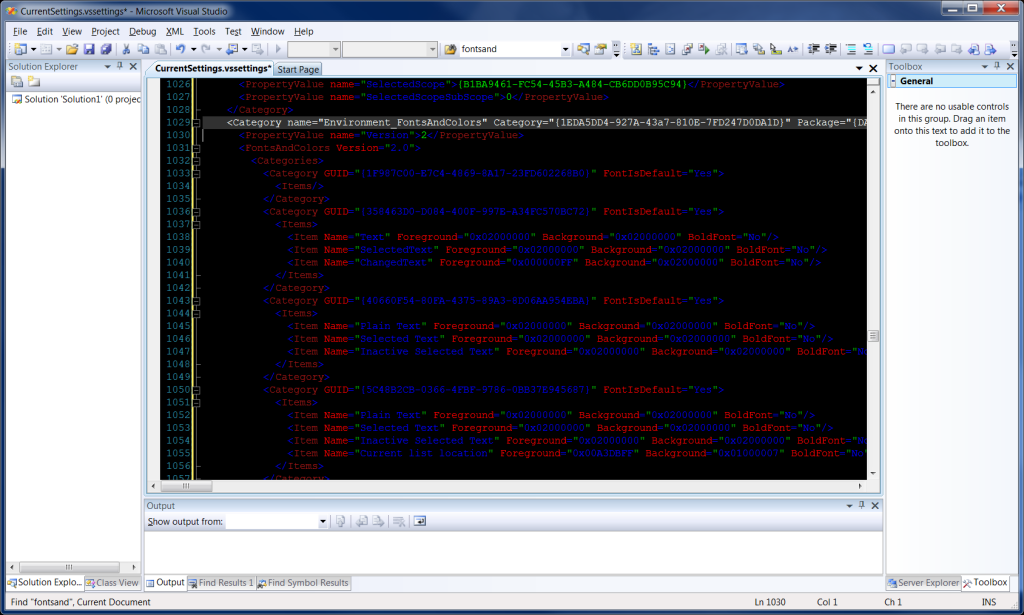
Want just the XML? For those of you who also want a black background and just want the XML, here is my Environment_FontsAndColors section and a screen shot of it.

Visual Studio 2008 Text Editor with black background

Visual Studio 2008 Text Editor with black background

Here is the xml code, you can copy and paste:


      2


Copyright ® Rhyous.com – Linking to this article is allowed without permission and as many as ten lines of this article can be used along with this link. Any other use of this article is allowed only by permission of Rhyous.com.

How to convert an int to a string in C++? (Also doubles, floats, etc…)

Here is how I do it. This procedure actually works for any type such as: int, double, float, etc…

Convert an Int Only

#include
#include
#include

using namespace std;

int main()
{
int i = 10;
string s = inToString(i);
return 0;
}

string intToString(int inInt)
{
stringstream ss;
string s;
ss << inInt; s = ss.str(); return s; } [/sourcecode] As a Template So It Works with All Types (int, float, double, etc…)

I found a comment on another guys blog that actually makes it work for any type such as double, float, etc.. It has this code using this template.
http://notfaq.wordpress.com/2006/08/30/c-convert-int-to-string/

template
string anyTypeToString(const T& t)
{
std::stringstream ss;
ss << t; return ss.str(); } [/sourcecode] This works really well, I have been using it and it is so simple. Key words: int to string intToString double to string doublToString float to string floatToString